

Mixed-content warnings scare visitors away and dent your SEO, but you can silence them in under five minutes-no code required. In this quick guide you’ll flip two free Cloudflare switches to force every image, script, and stylesheet onto HTTPS so browsers show the green lock your users trust.
Grab a coffee, open your Cloudflare dashboard, and let’s turn those red console errors into a thing of the past.
- Check for mixed-content warnings
- Open Cloudflare SSL/TLS settings
- Enable Automatic HTTPS Rewrites
- Force HTTPS with Always Use HTTPS
Step-by-step walkthrough
-
Fix Mixed Content Errors With Cloudflare
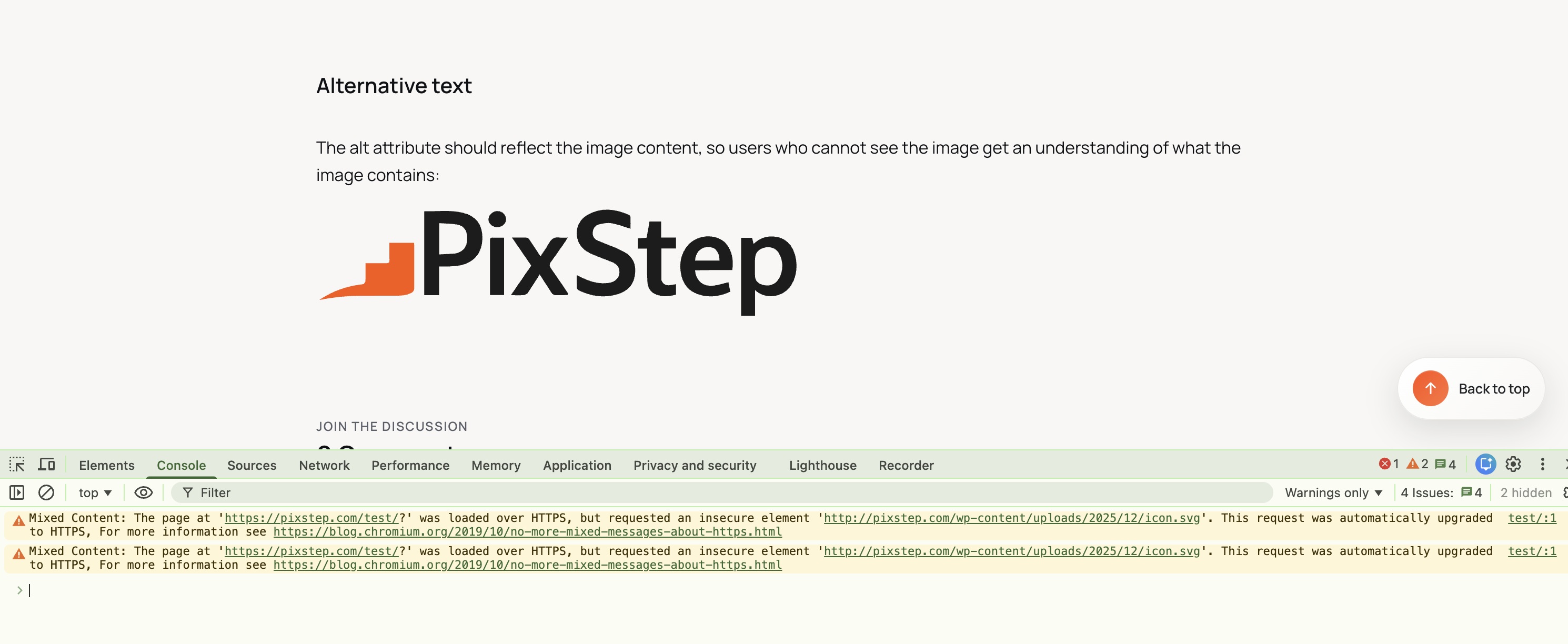
Open your browser console: Windows press F12 or Ctrl+Shift+I, macOS press Cmd+Opt+I. Look for any Mixed Content errors listed.
-
Open SSL/TLS section
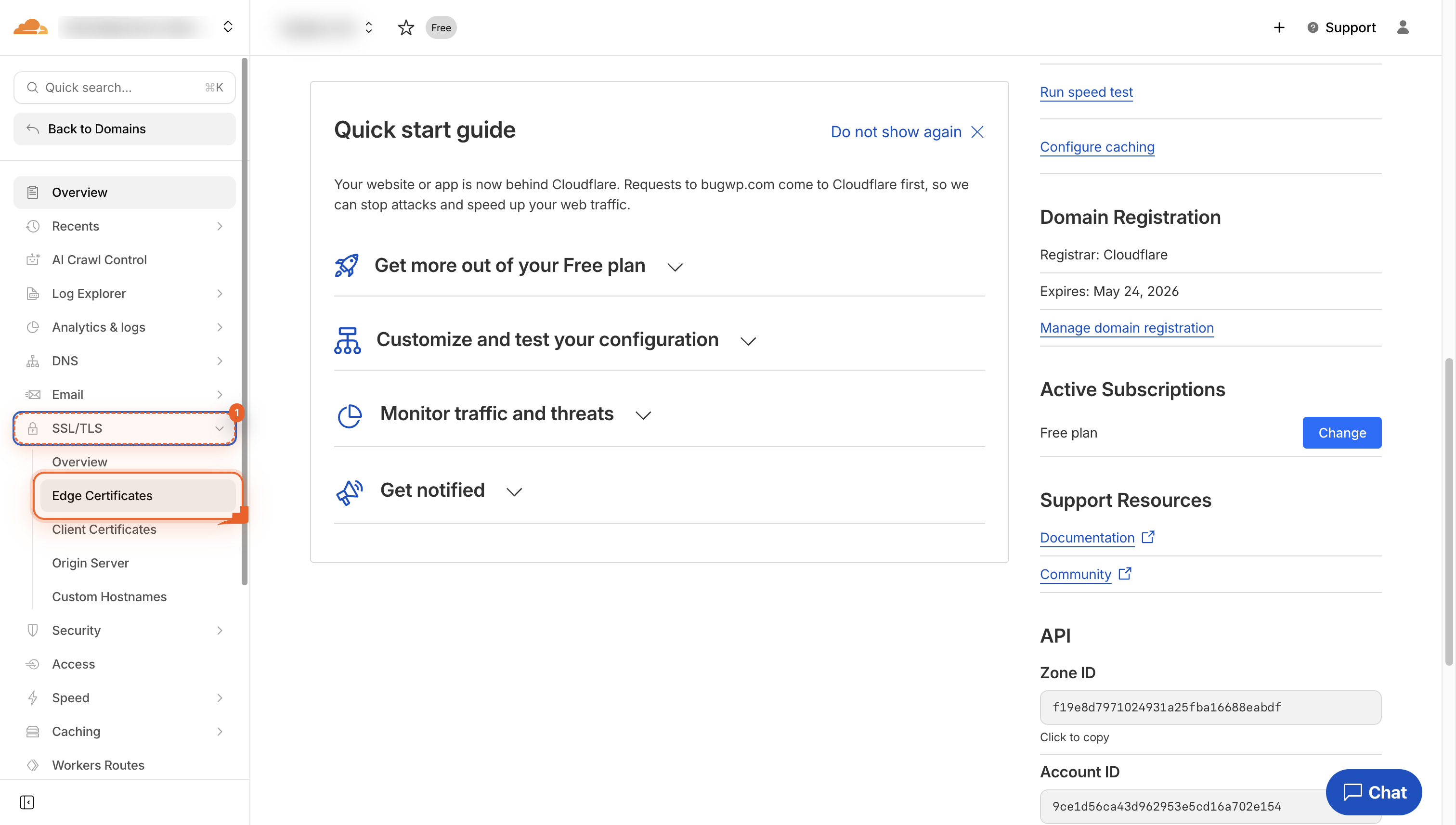
Navigate to the SSL/TLS area in the left menu, then click Edge Certificates to manage your site's HTTPS settings.
-
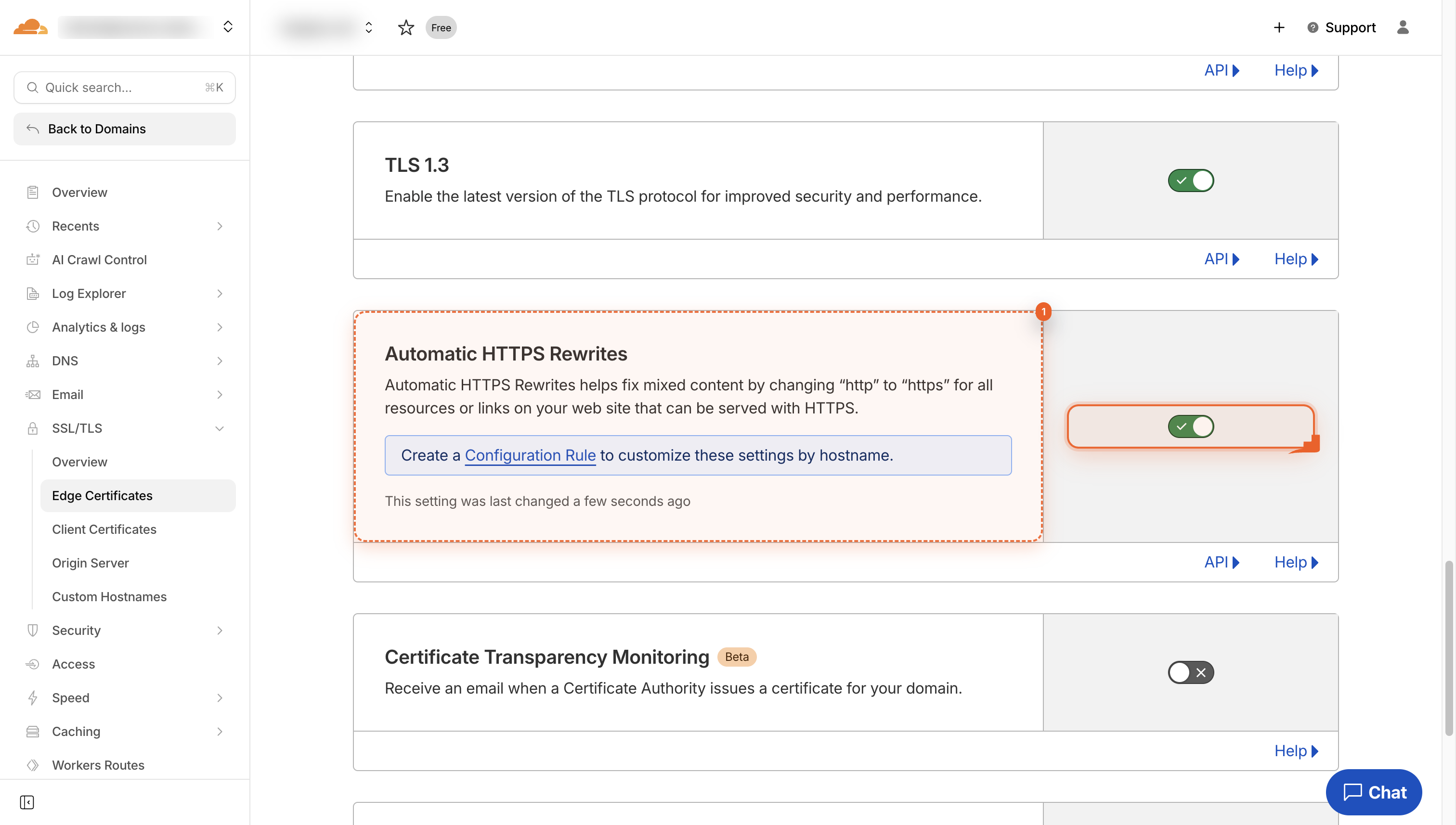
Turn on HTTPS Rewrites
Find the Automatic HTTPS Rewrites card and flip the switch. It changes any leftover http links to https so your whole site loads safely.
-
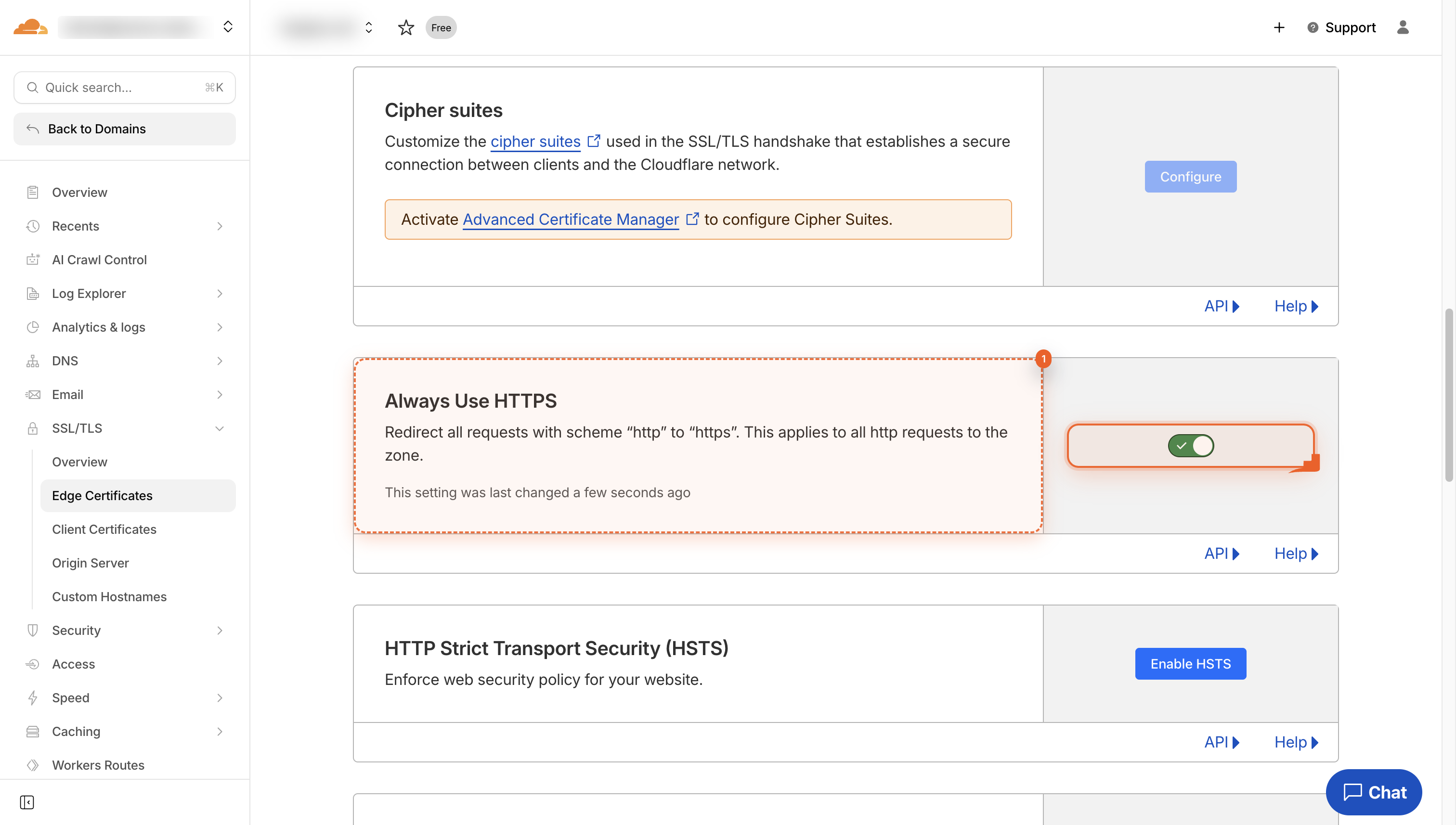
Turn on Always Use HTTPS
Flip the switch next to Always Use HTTPS. This sends every visitor straight to the safe https version of your site.
Pro Tips
- Purge Cloudflare cache after flipping the switches so changes go live instantly.
- Run a quick SSL Labs test to confirm your grade jumps to A+.
- Bookmark your browser console shortcut-check it after every theme/plugin update.
- If errors persist, scan for hard-coded http:// in posts/widgets and swap to https://.
FAQ
- Q: Will these Cloudflare switches break anything on my site?
- A: No-both features only rewrite or redirect requests, so your original files stay untouched. After toggling, spot-check a few pages; if a plugin breaks, simply flip the switches off and purge cache.
- Q: How long before the mixed-content warnings disappear?
- A: Changes deploy globally in under 30 seconds, but browsers cache pages. Purge Cloudflare’s cache and refresh your site with Ctrl+F5 (or Cmd+Shift+R on Mac) to see the green lock right away.
- Q: Do I still need to update hard-coded http:// links in my database?
- A: Automatic HTTPS Rewrites catches most, but a few stubborn assets (like background images in CSS files) may slip through. If console errors persist, search your theme and widgets for leftover http:// and swap them manually.
That’s it-two toggles and a cache purge later, every asset on your site now loads over HTTPS and the mixed-content warnings are gone. Enjoy the green lock, the SEO boost, and the confidence that every visitor sees a secure, professional site.
Join the discussion
0 Comments