

When you update a single blog post or tweak a landing page, waiting for Cloudflare’s global cache to catch up can feel like forever. In this quick guide you’ll learn how to clear the cache for just one URL so visitors instantly see your freshest content-no site-wide purge required.
You’ll keep performance intact everywhere else, avoid unnecessary origin hits, and regain control over exactly what your audience experiences.
- Open Cloudflare Caching settings
- Select Custom Purge
- Enter the page URL
- Confirm and purge cache
Step-by-step walkthrough
-
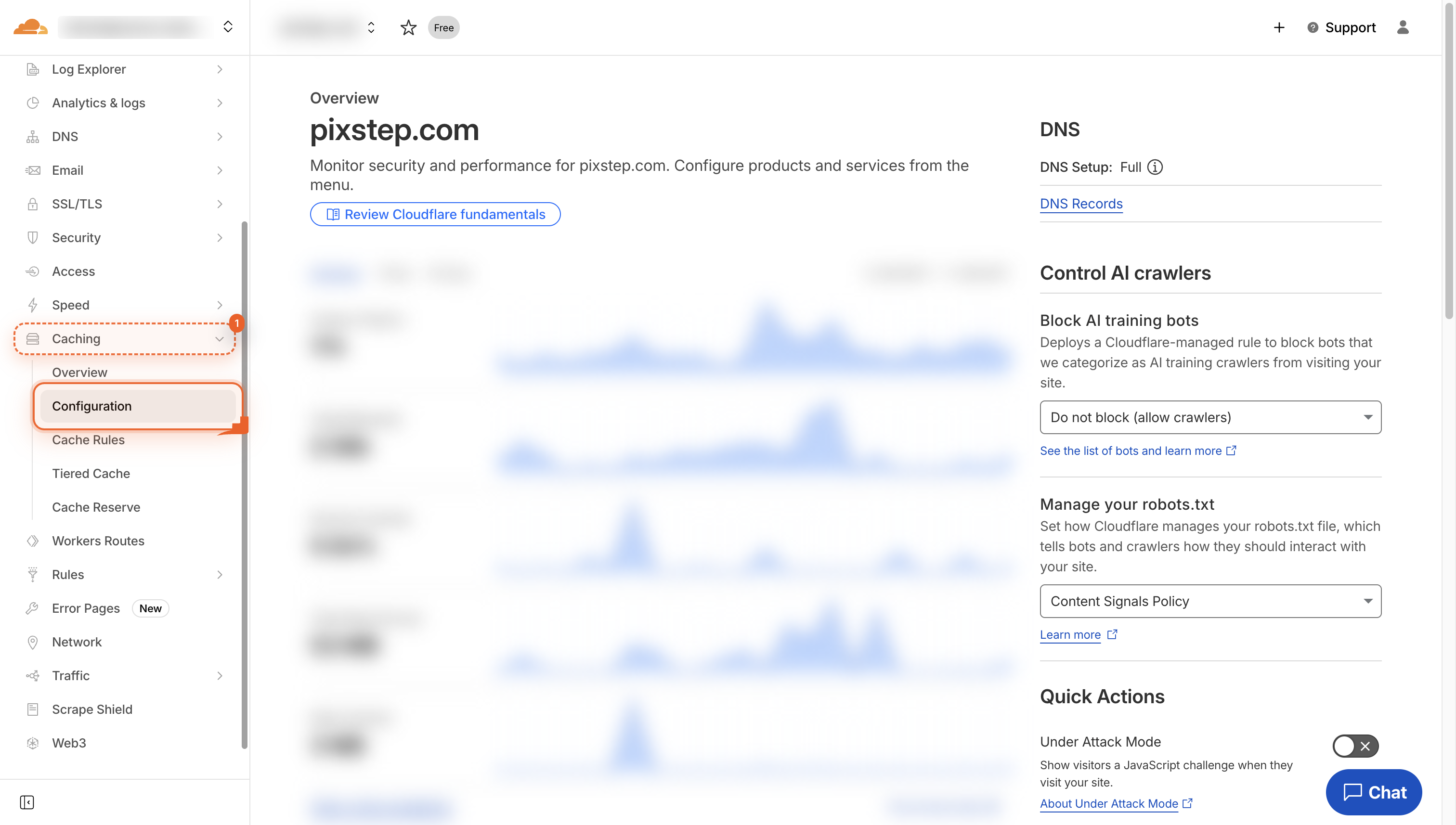
Open Caching settings
Go to the Caching section in the side menu so you can manage how your site stores and serves files.
-
Click Custom Purge
Click the Custom Purge button so you can choose exactly which files to clear from the cache.

-
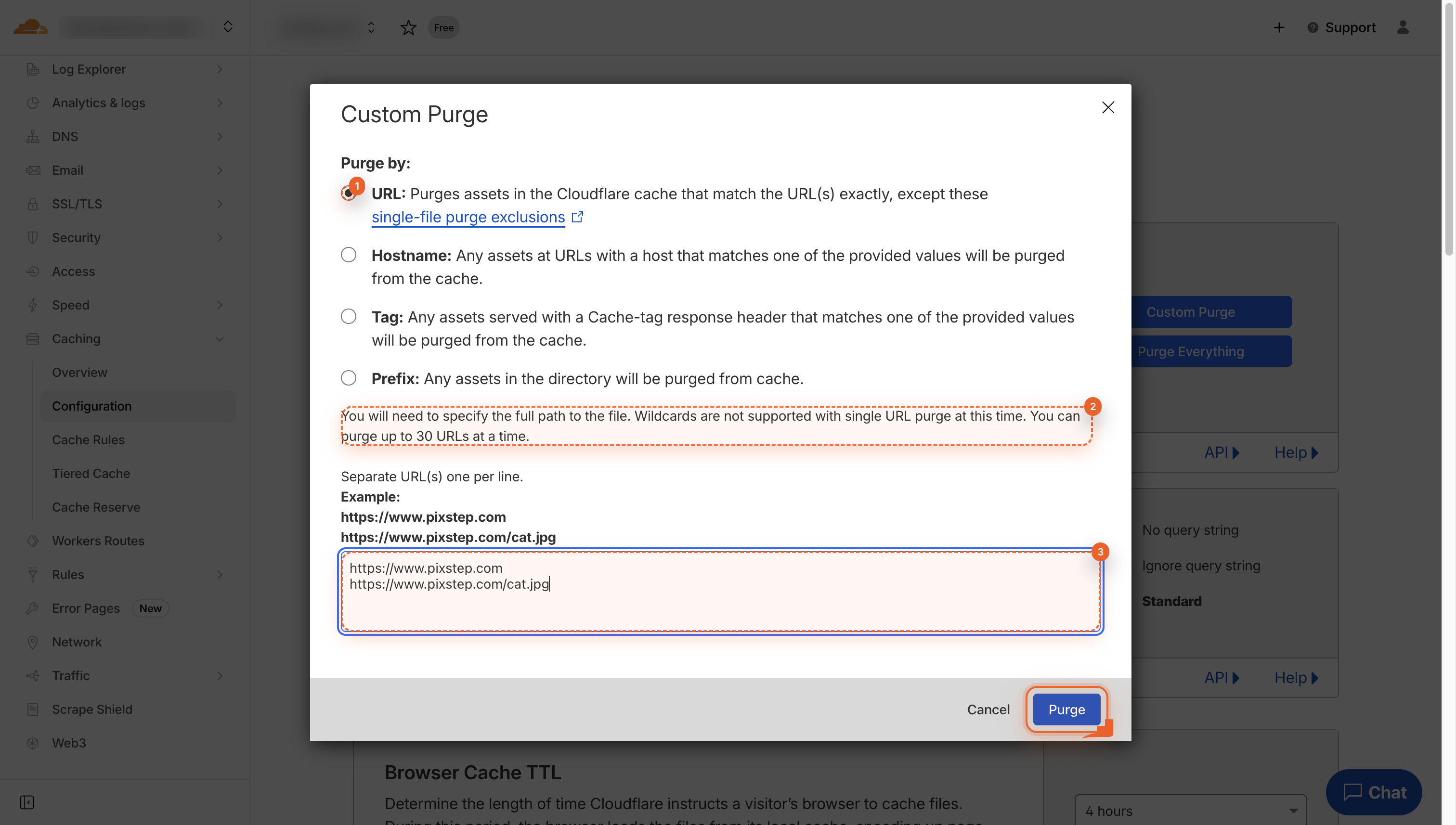
Choose files/URLs to purge
Click and then paste each full URL on its own line. You can list up to 30. Wildcards are not allowed here.
-
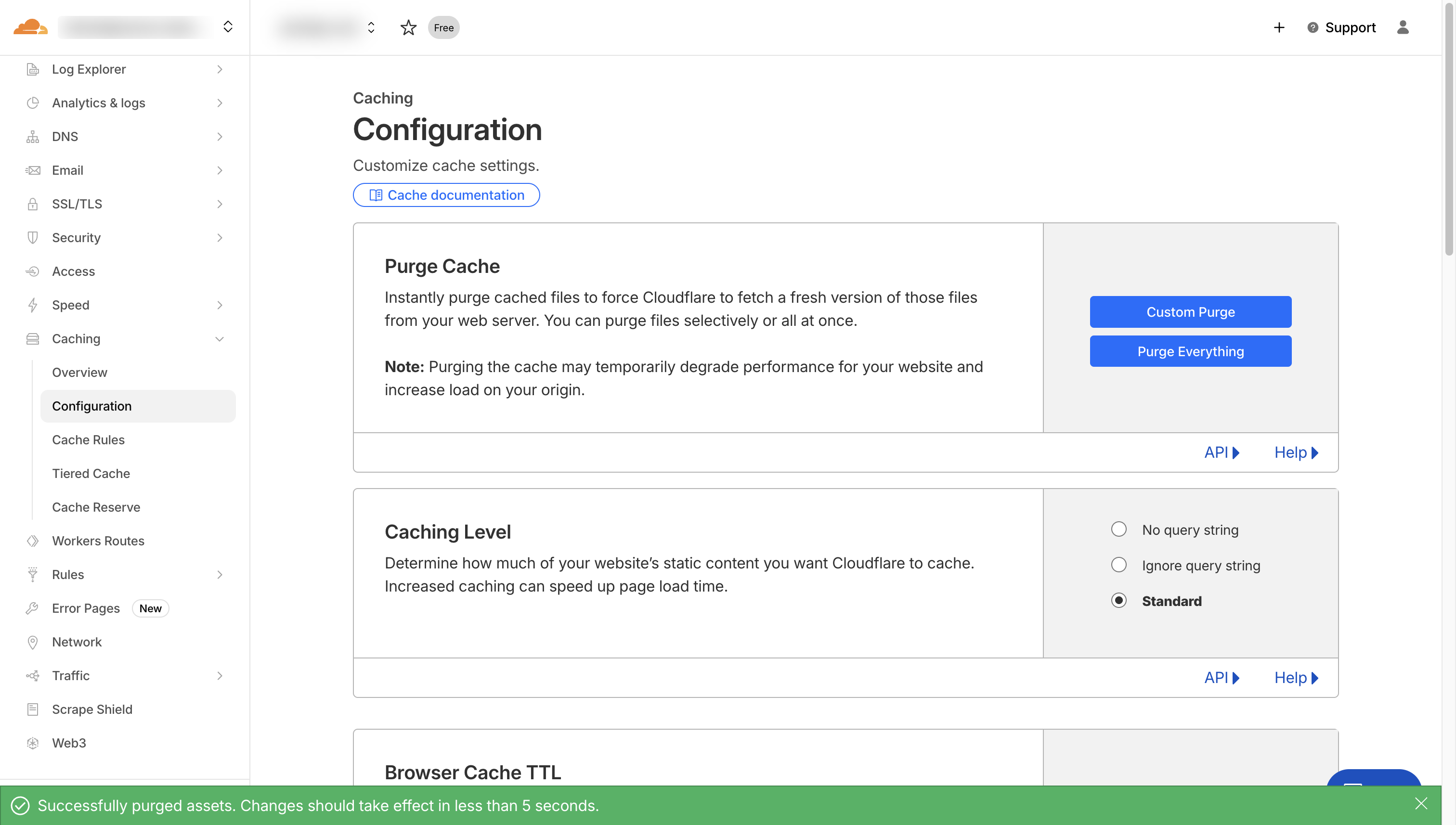
Cache cleared for all URLs
Your cache is now cleared for every choosen URL. Visitors will see the newest version of your site right away.
Pro Tips
- Test the URL in an incognito window right after purging to confirm the fresh version loads.
- Copy the exact URL from your browser to avoid typos-Cloudflare is case-sensitive.
- Purge during low-traffic windows to minimize any brief 404 spikes while the cache rebuilds.
- Bookmark the Custom Purge page for one-click access next time you tweak a post.
FAQ
- How long does a single-page purge take to propagate worldwide?
- Most visitors see the fresh version within 30-60 seconds; Cloudflare’s edge nodes drop the old copy instantly, so you can test right away.
- Can I purge a URL with query strings like ?utm_source=email?
- Yes-paste the exact address, parameters and all; each unique query string is cached separately, so be precise.
- What if the page still looks stale after purging?
- Hard-refresh your browser (Ctrl-F5) or open an incognito window; if it persists, check your origin for server-side caching plugins or headers that may be re-serving the old version.
That’s it-you’ve cleared the cache for just one page without touching the rest of your site, so every visitor now sees your latest changes instantly. Keep Custom Purge in your toolkit and you’ll never wait around for global updates again.
Join the discussion
0 Comments