

Clean, readable URLs make your site easier to share and give search engines a clear map of your content. In the next two minutes you’ll swap WordPress’ default links for a crisp structure that boosts SEO and looks great in the address bar.
No code, no plugins-just two clicks inside your dashboard. Grab a cup of coffee and let’s tidy up those permalinks.
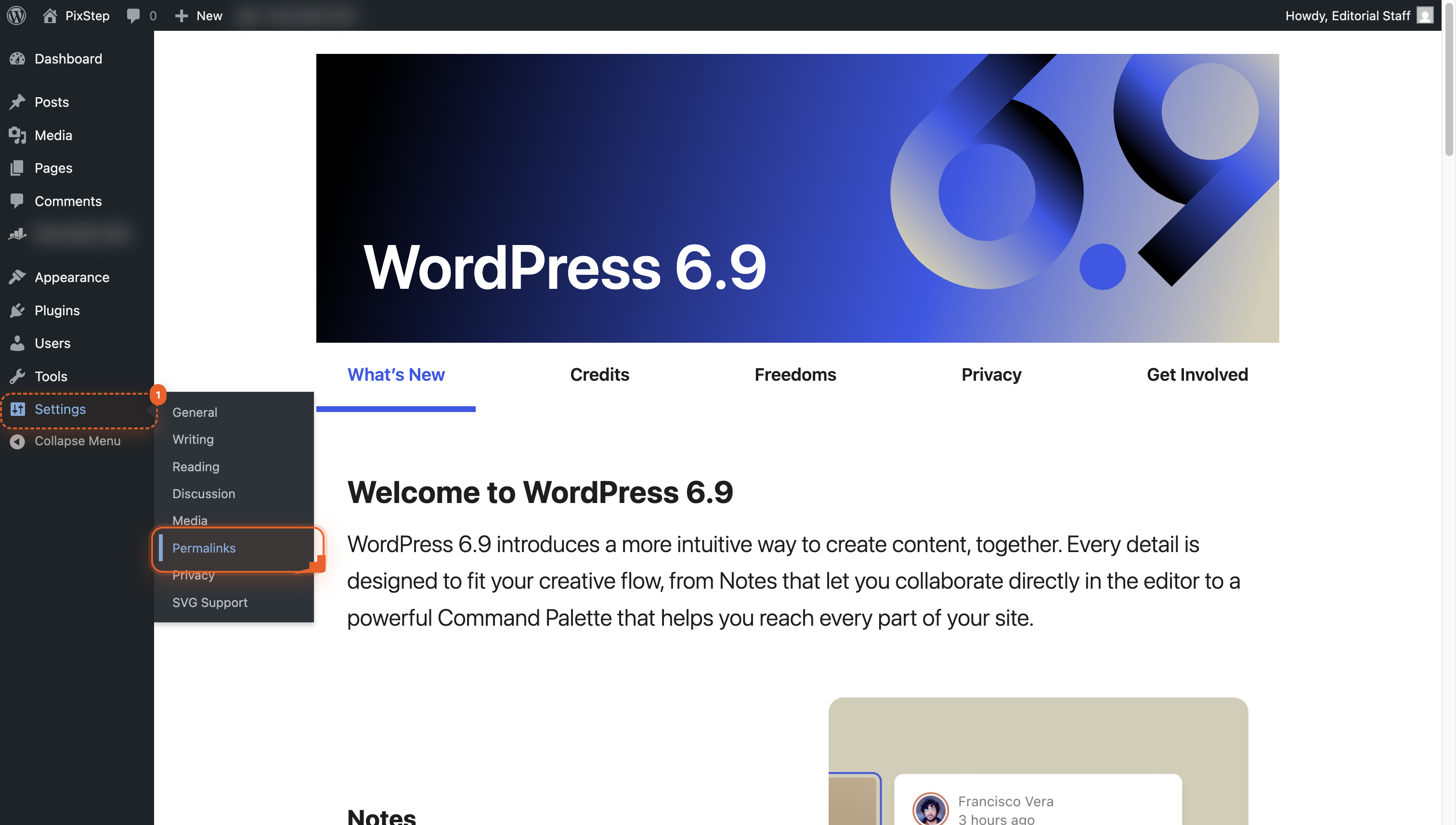
- Open Settings > Permalinks
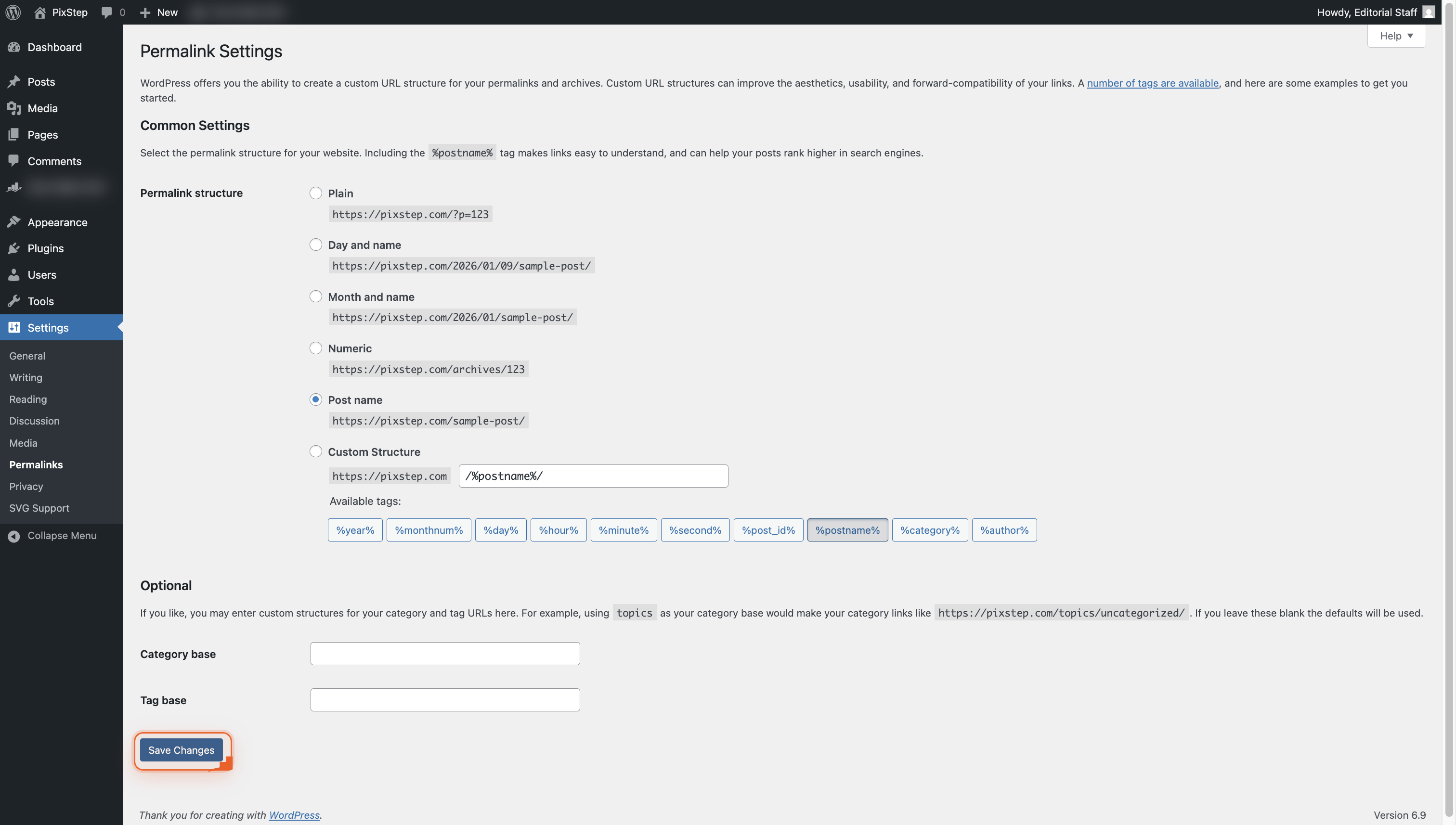
- Pick a permalink structure
- Save your new link style
Step-by-step walkthrough
-
Go to Settings
Navigate to Settings so you can open the Permalinks page next.
-
Save your permalink choice
Click Save Changes to lock in your new link style. WordPress flushes the old links for you.
Pro Tips
- Back up your site before switching to avoid 404 surprises
- Pick “Post name” for the shortest, most SEO-friendly URLs
- After saving, resave existing posts to refresh cached links
- Test a few old URLs to confirm redirects work smoothly
FAQ
- Will changing permalinks break my old links?
- If you pick a new structure and hit Save, WordPress auto-redirects your old URLs to the new ones, so visitors still land on the right page. Test a few links after saving to be sure, and install a redirect plugin only if something feels off.
- Which permalink structure is best for SEO?
- “Post name” gives you short, keyword-rich URLs that both readers and search engines love. It’s the default we recommend unless you run a news site that needs dates.
- Do I need a plugin to change permalinks?
- Nope-just head to Settings Permalinks, choose an option, and save. Plugins only help if you want custom structures or extra redirects afterward.
You’ve just traded clunky links for clean, SEO-ready URLs in under a minute. Bookmark this guide and revisit it whenever you launch a new site-your future rankings (and your visitors) will thank you.
Join the discussion
0 Comments