

When you update your site, Cloudflare’s edge cache can still serve the old version to visitors-frustrating for you and confusing for them. In this quick guide you’ll learn how to clear that cache in under a minute so every change you publish appears instantly, everywhere.
By the end, you’ll know exactly which buttons to click (and which warnings to heed) to purge Cloudflare’s cache with confidence-no technical jargon, no downtime, just fresh content for your users.
- Open Cloudflare Caching settings
- Click Purge Everything
- Confirm the purge
- Verify cache is cleared
Step-by-step walkthrough
-
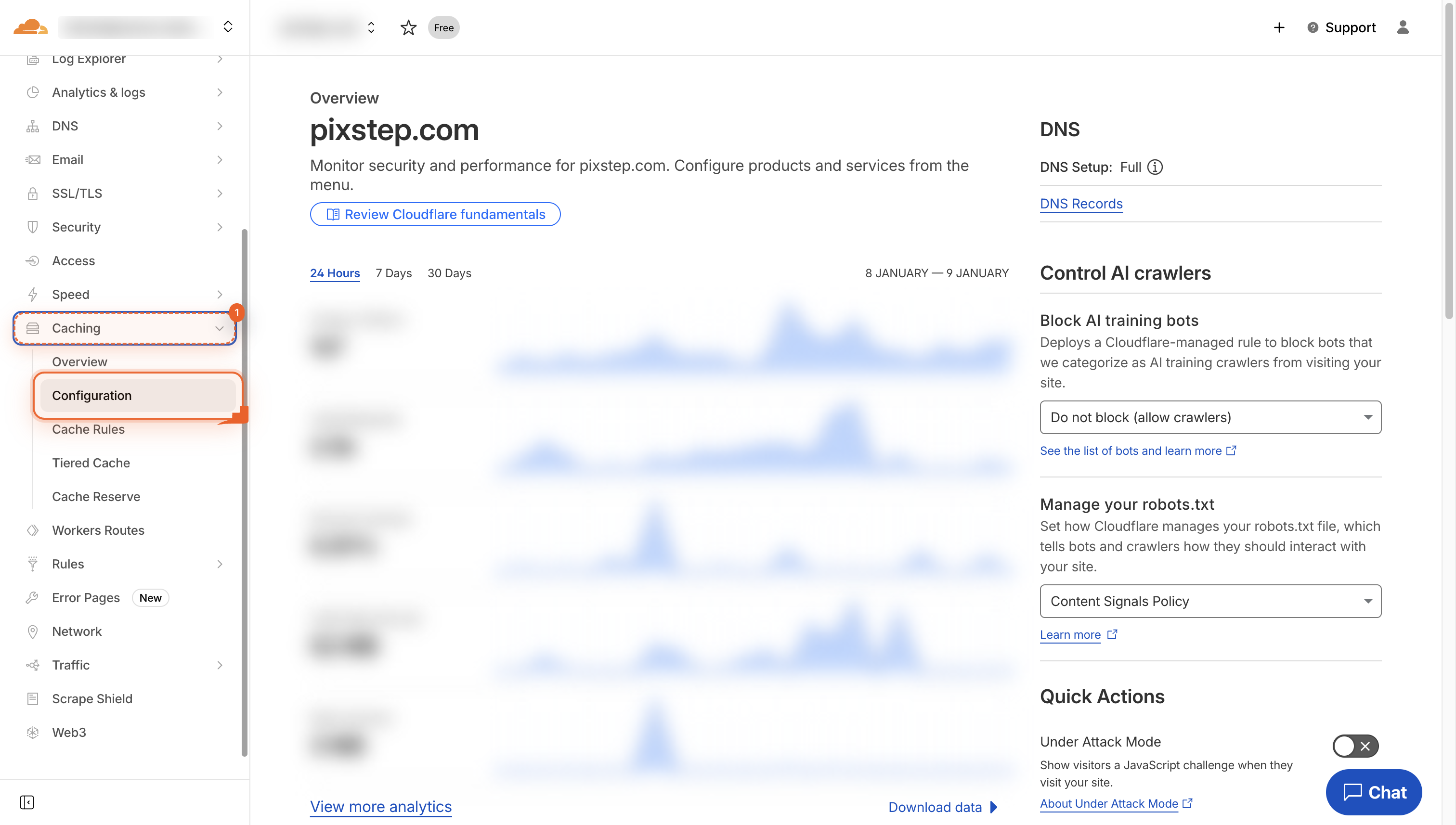
Open Caching settings
Navigate to the Caching section in the left sidebar so you can manage how your site stores and serves content.
-
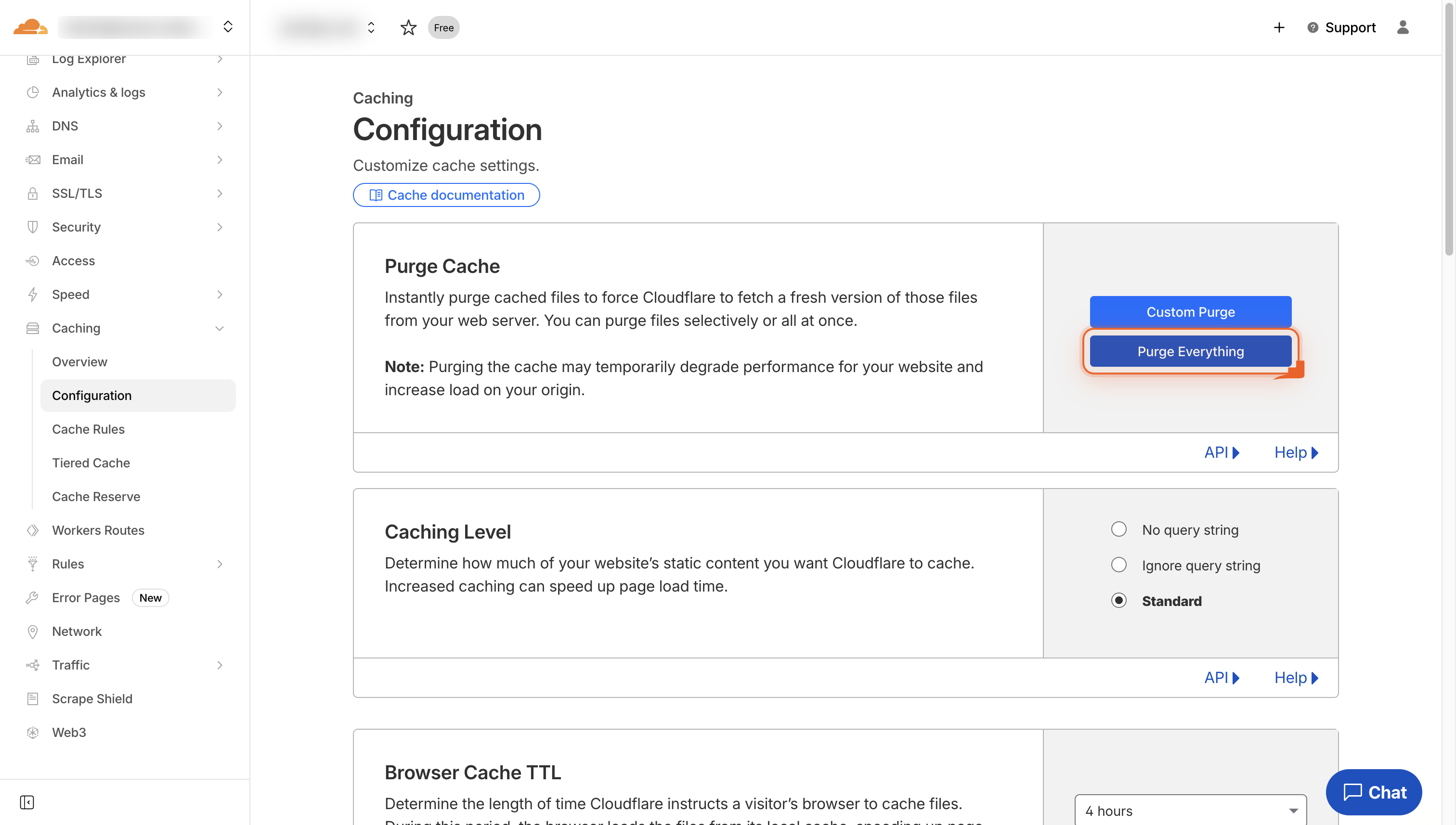
Click Purge Everything
Hit the Purge Everything button to clear all cached files from Cloudflare. This makes sure visitors see the newest version of your site.
-
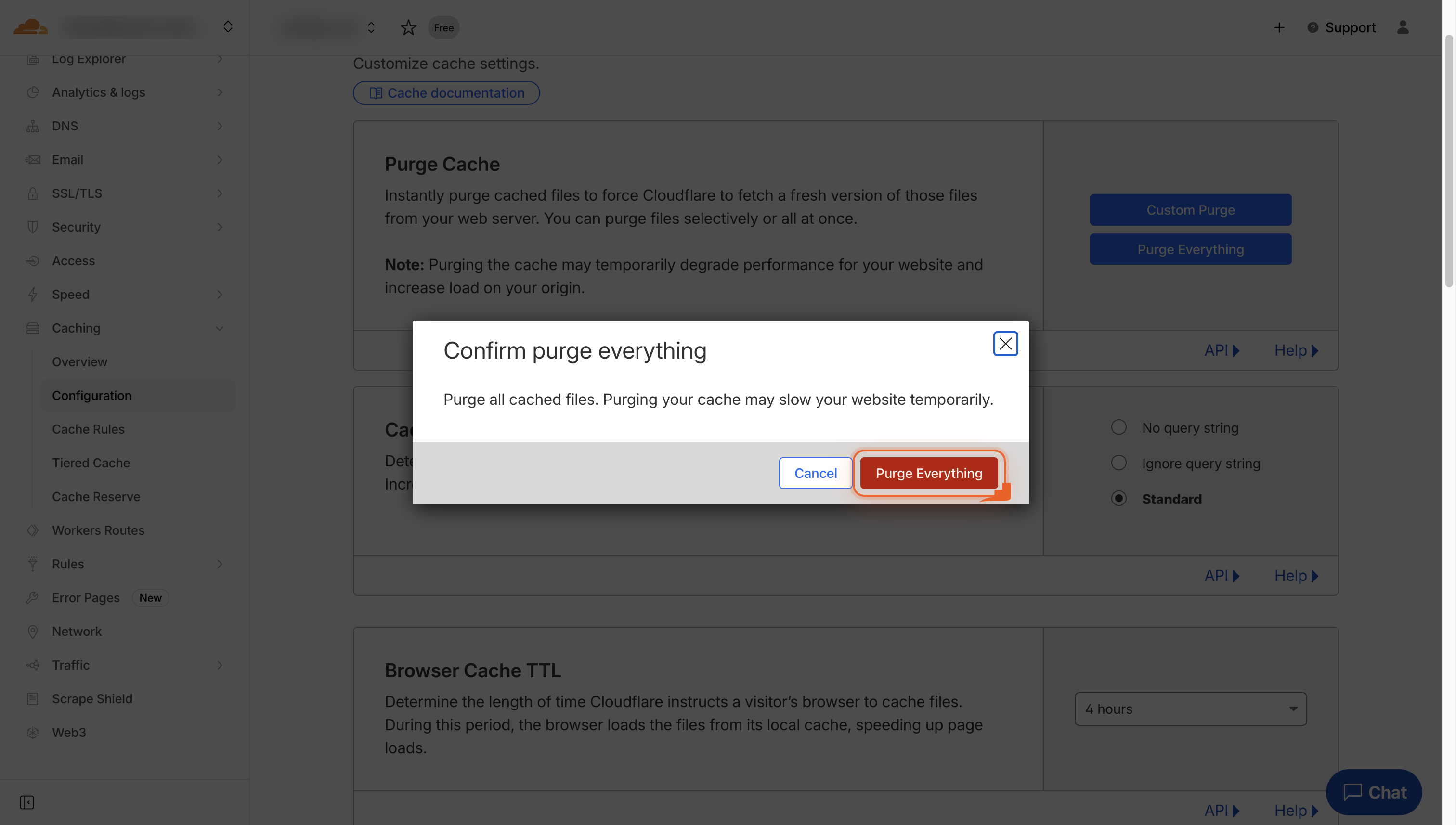
Click Purge Everything
Click the red Purge Everything button to clear all cached files. This makes sure visitors see the newest version of your site.
-
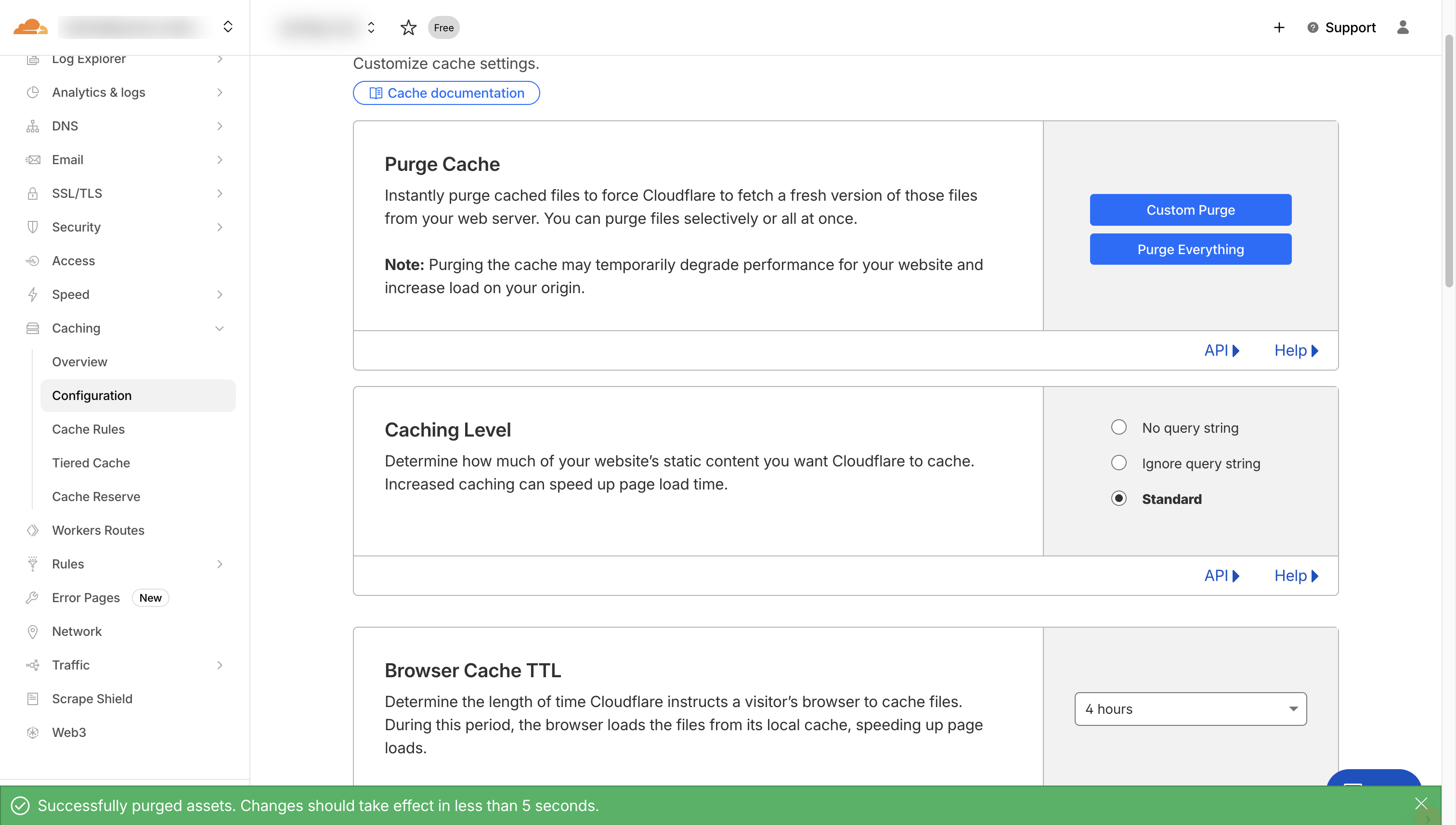
Cache cleared
Your cache is now empty. New site changes will show in under 5 seconds.
Pro Tips
- Purge single files first-faster than a full cache wipe if you only tweaked a page or two.
- Enable “Development Mode” while editing to bypass cache entirely and see changes live.
- Set Browser Cache TTL to “Respect Existing Headers” so your origin controls refresh rules.
- Schedule a weekly purge via Cloudflare API to keep stale assets from lingering.
FAQ
- How long does a Cloudflare purge take to finish?
- Most purges finish worldwide in under 30 seconds; you’ll see a green banner the moment it’s done. If you still spot stale content after a minute, hard-refresh your browser or check the specific URL with
?nocache=1to be sure. - Will purging everything slow down my site?
- The first visitor to each location may notice an extra second or two while Cloudflare fetches fresh files, but global traffic quickly rebuilds the cache and speeds return to normal-no permanent slowdown.
- Can I undo a purge?
- No undo button exists; once purged, the cache is empty. If you need the old assets back, re-upload them to your origin and purge again, or wait for normal TTL re-caching.
You’re all set-your Cloudflare cache is now clear and every visitor sees the freshest version of your site. Keep the quick purge steps handy and you’ll never wrestle with stale content again.
Join the discussion
0 Comments