

If your browser keeps spitting out “ERR_TOO_MANY_REDIRECTS” when you visit your WordPress site, you’re only a few clicks away from relief. This quick guide walks you through Cloudflare’s SSL/TLS panel so you can stop the loop, restore access, and get back to publishing.
In less than five minutes you’ll learn how to pick the correct SSL mode, save the change, and see your site load normally-no code tweaks or downtime required.
- ERR_TOO_MANY_REDIRECTS message
- Open Cloudflare Overview
- Enter SSL/TLS settings
- Set SSL mode to Full (Strict)
- Confirm your site loads normally
Step-by-step walkthrough
-
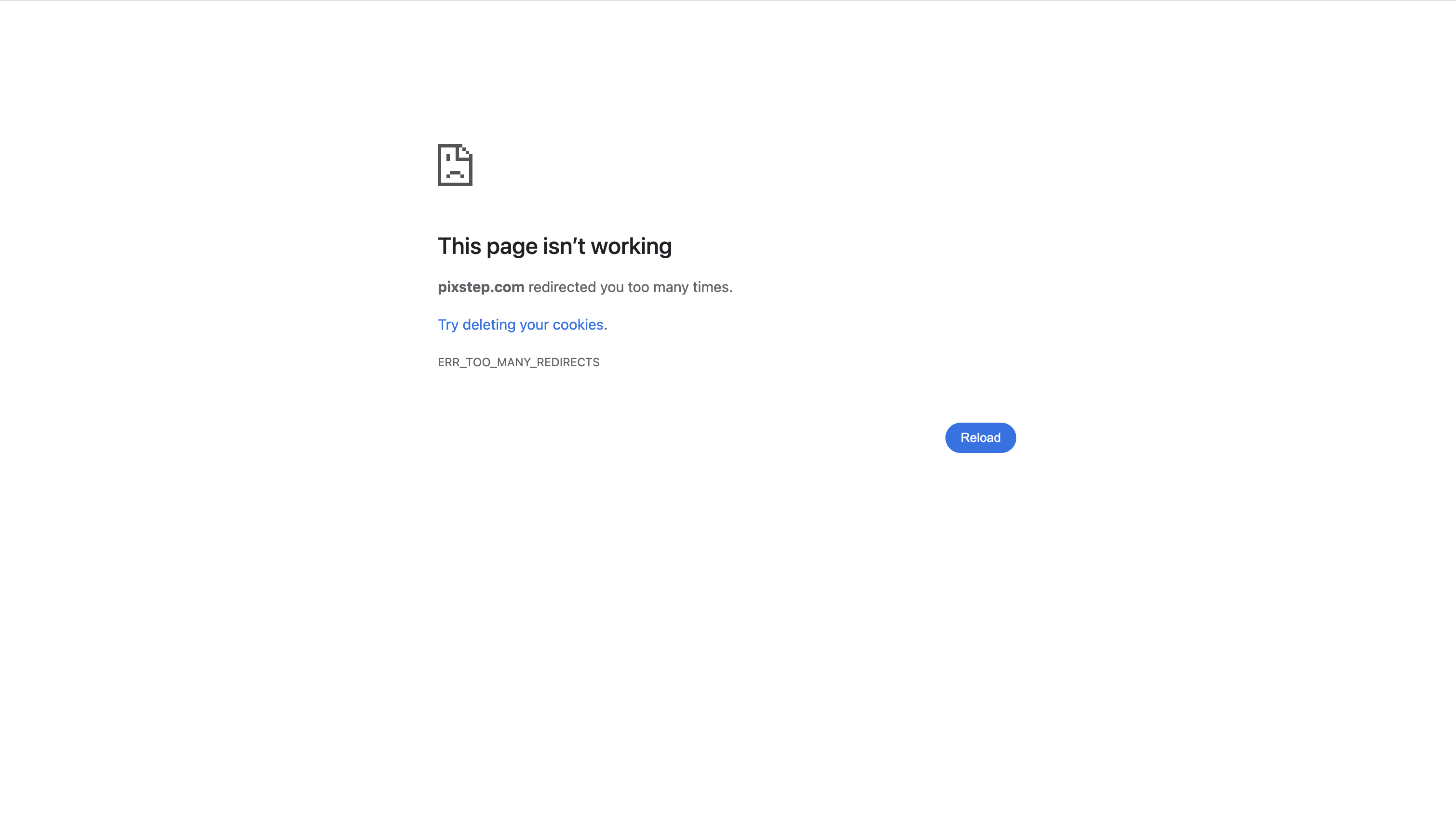
This page isn’t working. ERR_TOO_MANY_REDIRECTS
Clear your browser cache and cookies for this site, then refresh the page. If that doesn’t resolve, go to the next step.
-
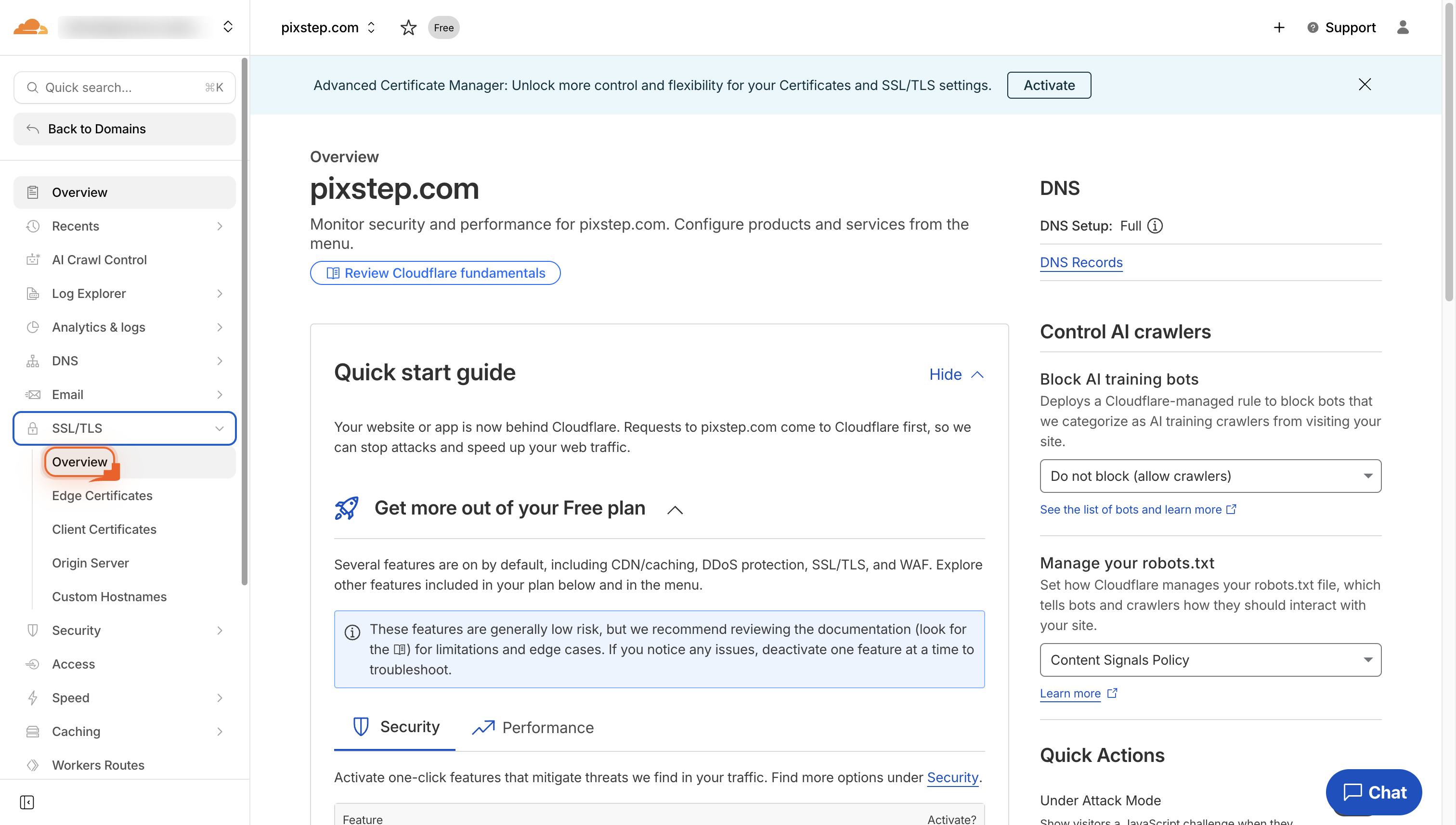
Go to Overview
Navigate to the Overview page to see your site’s main settings and stats.
-
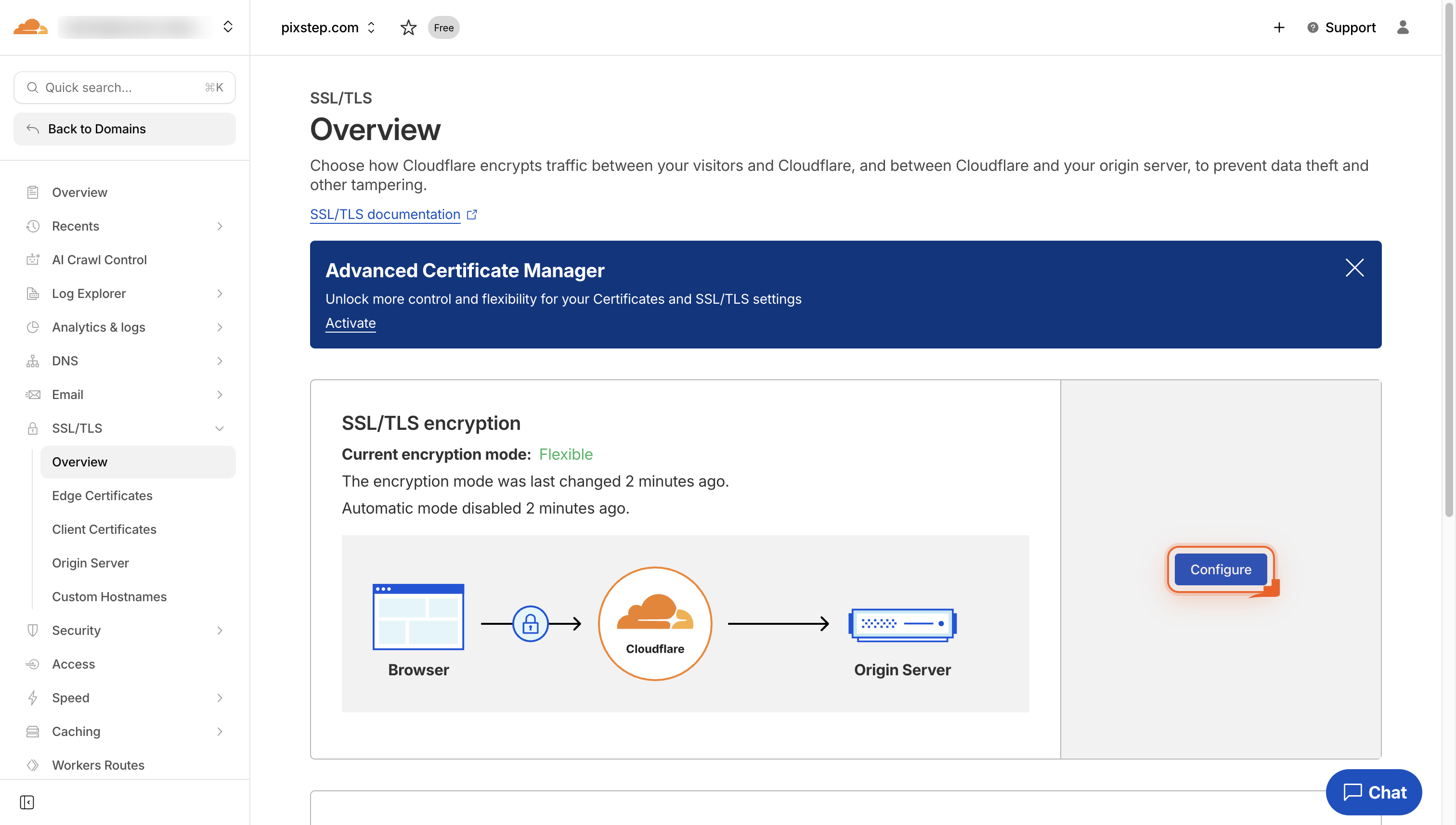
Click Configure
Click the Configure link to open the SSL/TLS settings for your site.
-
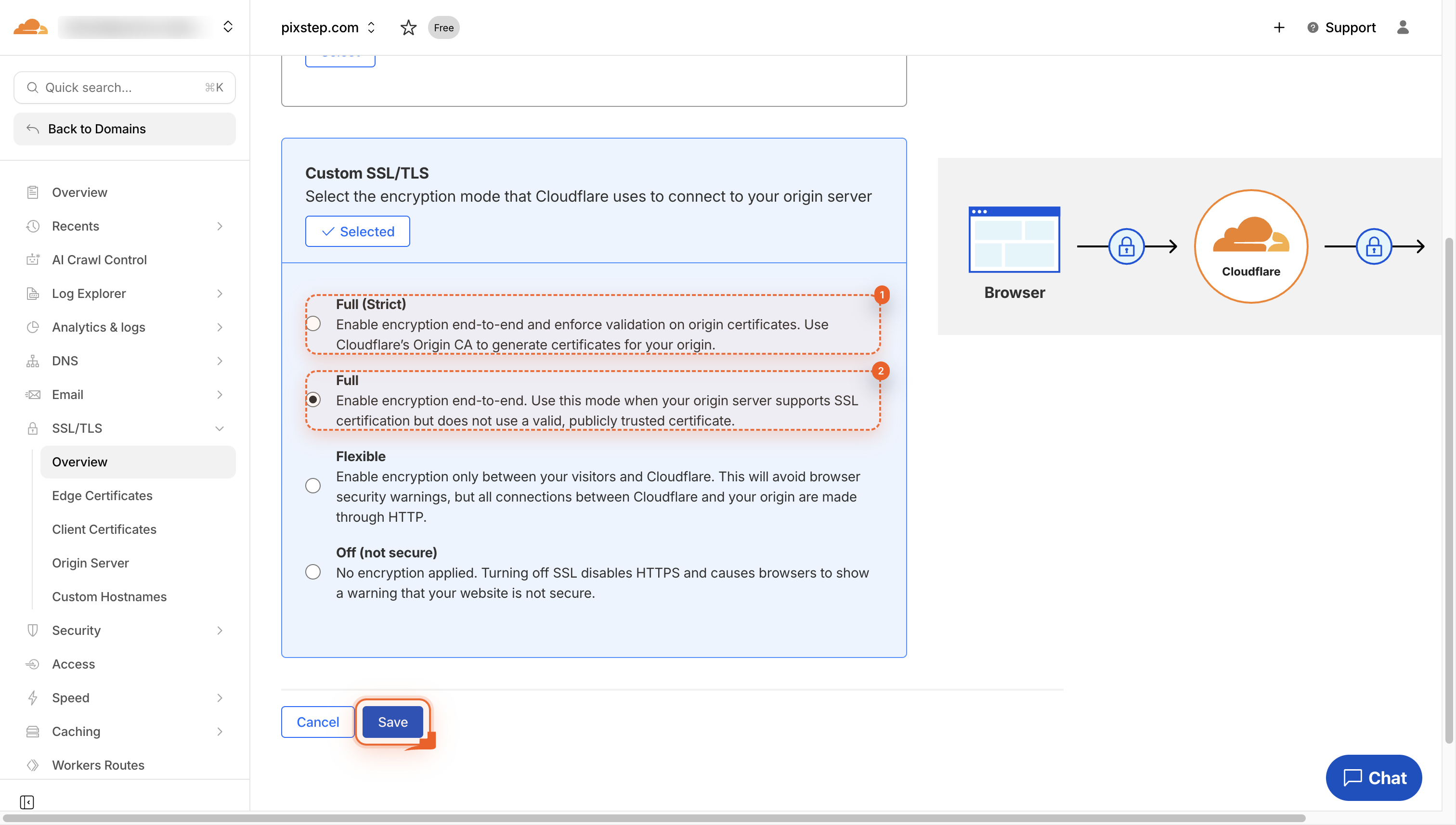
Choose SSL/TLS mode
Pick Full (Strict) for trusted certs or Full for self-signed, then click Save.
-
Check your live site
Open your site now. It should load and look normal again.
Pro Tips
- Purge Cloudflare cache after saving SSL mode to clear stale redirects.
- Keep WordPress “Site URL” set to https:// to match Cloudflare SSL.
- Test in incognito to bypass browser cache while confirming the fix.
FAQ
- Why does Cloudflare cause “too many redirects” on my WordPress site?
- The loop happens when Cloudflare’s SSL mode clashes with your server: Cloudflare may send requests over HTTP while WordPress insists on HTTPS, so each side keeps telling the other to switch. Picking the matching SSL mode ends the argument.
- Which SSL mode should I pick in Cloudflare?
- If your host already has a valid certificate, choose Full (Strict). If the cert is self-signed, choose Full. Avoid “Flexible” unless your server has no SSL at all; otherwise the loop can return.
- How long before the fix takes effect?
- Most visitors see the change within 60 seconds, but purge Cloudflare’s cache and open the site in incognito to be sure your browser isn’t holding onto the old redirect.
You’ve just stopped the redirect loop in under five minutes-no plugins touched, zero downtime. Your visitors can browse again, and you can publish with confidence knowing Cloudflare and WordPress are finally speaking the same SSL language.
Join the discussion
0 Comments